
What is Serpzilla MCP
Serpzilla MCP connects AI agents to Serpzilla, allowing them to search for backlink opportunities, manage orders, and buy placements using Serpzilla data and tools.
MCP (Model Context Protocol) is a standard that allows AI tools to connect with third-party services and use their data and functions. In our case, it connects AI tools with Serpzilla, giving AI agents access to Serpzilla data and link building tools.
You can use Serpzilla MCP with AI tools that support MCP, such as Claude, ChatGPT, Cursor, and OpenClaw. It can also work with other MCP-supporting tools and custom-built AI agents.
Once connected, you simply describe what you need in natural language. The AI agent selects the relevant Serpzilla tools, performs the required actions, and returns the results in the conversation.
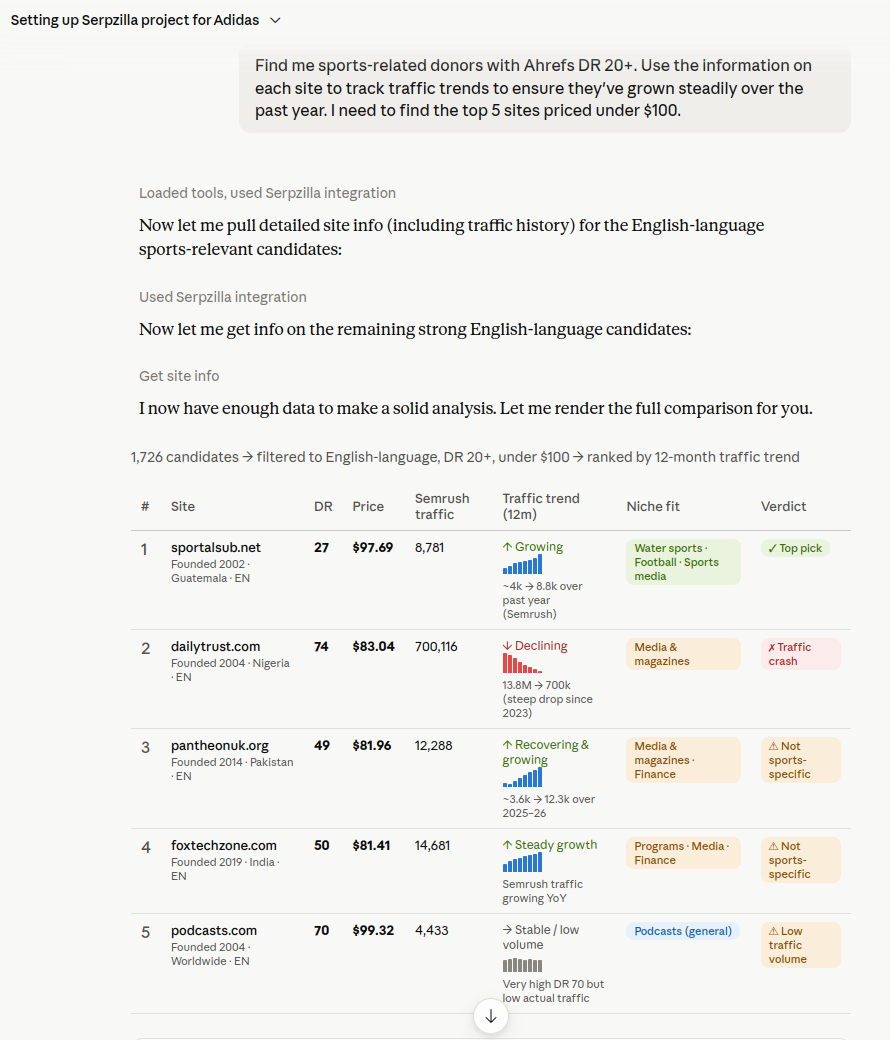
Example: In Claude, you can ask Serpzilla to find sports-related referring domains with DR 20+, analyze their traffic trends, and select the best options under $100.
What can you do with Serpzilla MCP?
The Serpzilla MCP server gives AI agents access to Serpzilla tools. With these tools, AI agents can:
- Create and name Serpzilla projects
- Add and manage target URLs
- Add anchor texts and content
- Set usage limits for anchors and content
- Search for relevant referring domains
- Search for a specific referring domain
- Review SEO metrics, traffic, pricing, and other placement data
- Enrich referring domain research with Ahrefs and Semrush data
- Save referring domains to Favorites and manage Favorites lists
- Add or remove referring domains from a project Blacklist
- Purchase Guest Posts, permanent and rental Niche Edits, and Contextual placements
- Check order and placement statuses
Search for backlink opportunities
Ask the AI agent to find referring domains that match your requirements.
You can search using Serpzilla data and filters such as:
- topic
- language and region
- price
- Ahrefs DR and traffic
- Majestic, Moz, and Semrush metrics
- domain age
- average placement time
- placement probability
- placement format
You can combine several requirements in a single request instead of setting each filter manually.
For example:
Find finance websites with DR 30+, at least 1,000 monthly organic traffic, and placements under $150.
Serpzilla provides a wide range of SEO and quality metrics that can be used when selecting referring domains, including Ahrefs, Majestic, Moz, and Semrush data.
You can also ask the AI agent to analyze several factors together.
For example:
Find sports websites with DR 20+ and prioritize domains whose traffic has remained stable or grown over the past year.
This lets you go beyond a simple filter such as minimum DR and use the historical data available in Serpzilla when evaluating potential placements.
Search for a specific referring domain
Search for a specific referring domain in the Serpzilla database to check whether placement opportunities are available.
For example:
Check whether example.com is available in Serpzilla
This is useful when you already have a referring domain in mind and want to review the available placement options.
Manage projects and target URLs
You can create and manage Serpzilla projects through an AI agent.
Projects help you organize your work by website, client, campaign, or group of target URLs.
For example:
Create a project called “US Sports Campaign.”
With create_project, you can give the project a name when creating it. This makes it easier to use projects as folders for different campaigns, websites, or groups of URLs.
You can also use update_url to assign a name to a target URL for clearer display and easier grouping of target URLs within a project.
Manage anchors and content
AI agents can add the anchors and content required for your placements.
You can also control how many times a particular anchor or text can be used.
For example:
Use this anchor no more than three times.
The set_limits tool lets you set usage limits for anchors and content in Serpzilla.
Save referring domains to Favorites
Use Favorites to save referring domains for later review or purchase. You can create separate named lists for different campaigns, clients, or website categories.
For example:
Create a Favorites list called “Finance websites” and add these five domains.
Through Serpzilla MCP, AI agents can:
- create and delete Favorites lists
- rename Favorites lists
- view existing Favorites lists
- add and remove domains
- view domains saved in a list
- move domains between lists
Manage your Blacklist
If you do not want to use a particular referring domain, add it to your project's Blacklist.
For example:
Add example.com to the Blacklist.
Each Serpzilla project has its own Blacklist. Once a domain is added, Serpzilla automatically excludes it from future search results for that project. You do not need to exclude it manually every time you search.
Buy placements
Once you find a suitable referring domain, the AI agent can continue the purchasing process through Serpzilla.
Depending on the placement format, it can use the relevant Serpzilla tools to work with the target URL, anchor, content, and placement before submitting the order.
For example:
Find the best placement under $100 and prepare it for purchase.
Before submitting the purchase through Serpzilla, the AI agent shows the selected placement and asks for confirmation.
Check order and placement statuses
Use Serpzilla MCP to check the current status of your orders and placements.
For example:
Check the status of my Serpzilla placements and tell me whether I need to do anything.
The AI agent retrieves the latest placement information through Serpzilla MCP and returns the current status in the conversation.
Supported placement formats
Serpzilla MCP supports several backlink placement formats.
Guest Posts
Publish a new article containing your backlink on a selected website.
Permanent Niche Edits
Add a backlink to an existing page as a permanent placement.
Rental Niche Edits
Add a backlink to an existing page with recurring payment for the placement.
Rental placements have dedicated MCP tools:
search_rent_sitesto search the rental databasepurchase_rent_placementto purchase a rental placement
Contextual
Find and purchase Contextual backlink placements available through Serpzilla.
The available tools and purchasing steps may differ depending on the placement format.
Connect to Serpzilla MCP
Serpzilla MCP can be connected to AI tools that support MCP, including Claude, ChatGPT, Cursor, OpenClaw, and custom-built AI agents.
The exact setup may vary depending on the AI tool, but the general process includes four steps:
- Create a Serpzilla advertiser account. Go to Serpzilla.com and register as an advertiser.
- Generate an API token in your Serpzilla account.
Once you’ve created your account, generate an API token in the Security section: https://passport.serpzilla.com/security/token/
Keep the email address associated with your Serpzilla account and your API token handy. Both are required to authorize the MCP connection.
You’ll also need a positive Serpzilla balance before purchasing placements. To test the workflow, you can start with a small amount. - Add the public Serpzilla MCP server to your AI tool and authorize the connection using your Serpzilla email and API token.
- Add a Serpzilla Skill, if supported by your AI tool. Skills provide additional instructions for using Serpzilla tools as part of specific link building workflows.
The setup steps may vary by AI tool. Below, we walk through the complete process using Claude as an example.
MCP server URL
Once the MCP connection is authorized, the AI agent can access the Serpzilla tools available through the server. The following example shows the complete setup in Claude.
Connect Serpzilla MCP to Claude
Step 1. Connect the Serpzilla MCP server to Claude
The account setup, API token generation, and balance requirements are covered in the previous section. Before continuing, make sure you have:
- a Serpzilla advertiser account
- the email address associated with your account
- a valid Serpzilla API token
- a positive balance if you plan to purchase placements
Now connect the public Serpzilla MCP server to Claude.
Step 2: Connect the Serpzilla MCP Server to Claude
Let’s connect the Serpzilla MCP server.
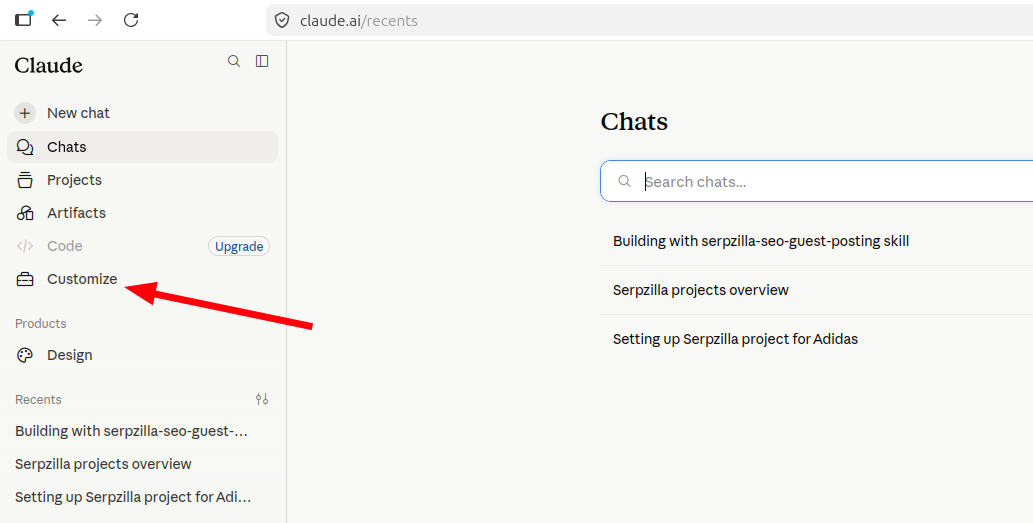
Open Claude and select Customize from the menu:
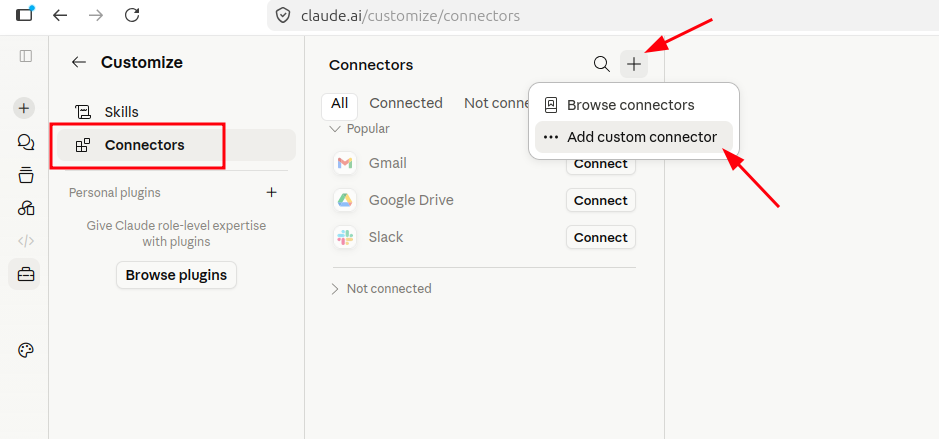
Next, open Connectors, click the + button, and select Add custom connector:
The Add custom connector window will appear. Enter the following details:
- Connector name: Serpzilla
- Remote MCP server URL: https://mcp.serpzilla.com/mcp
- Authentication: “Always Required”
- OAuth client: “No client ID”
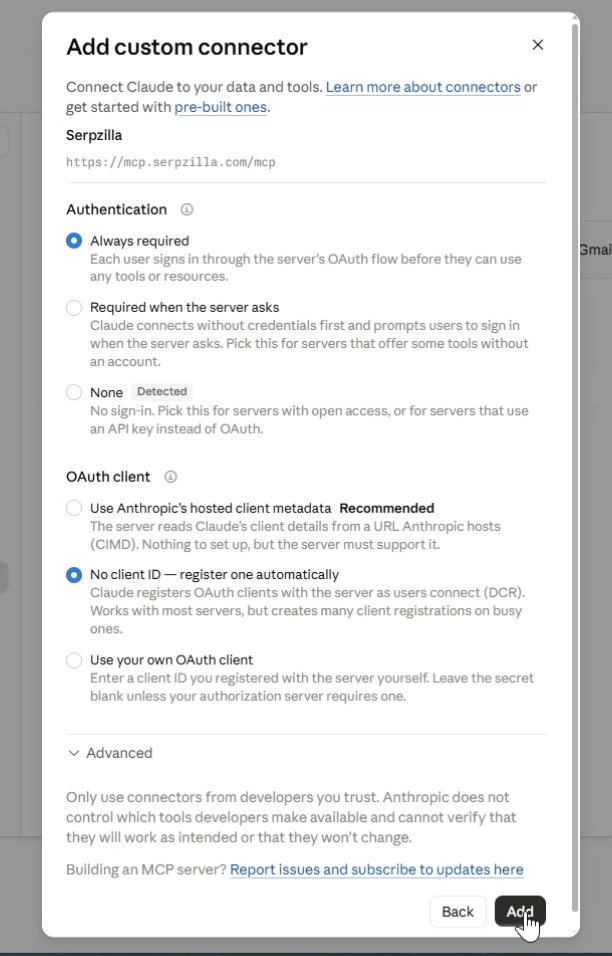
The fields under Advanced settings can be left empty.
Click Add.
The Serpzilla connector will appear in Claude, but it still needs to be authorized. Click Connect:
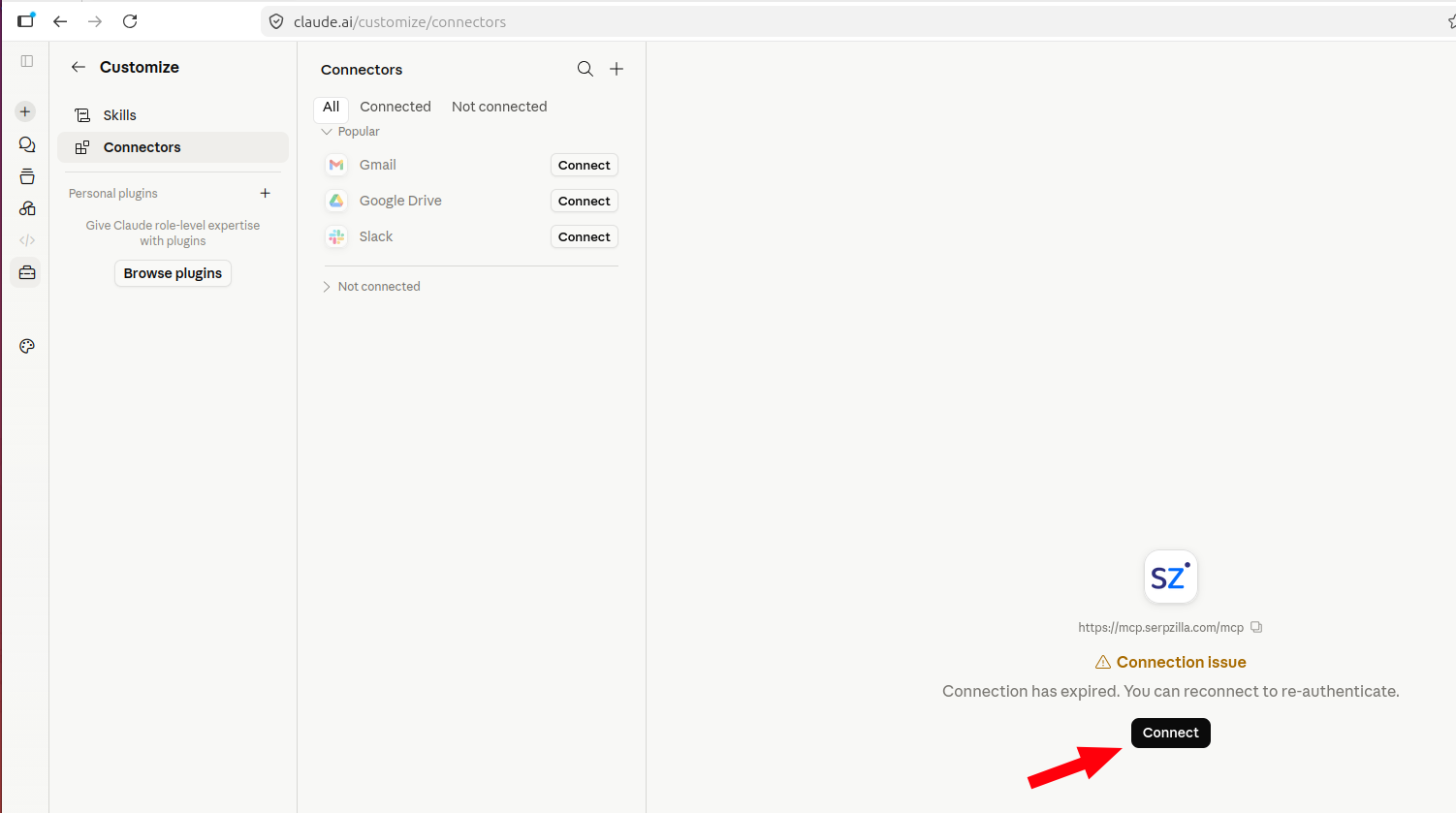
Claude will open an authorization page in your browser.
Enter the email address associated with your Serpzilla account and your API token. Then click Authorize:
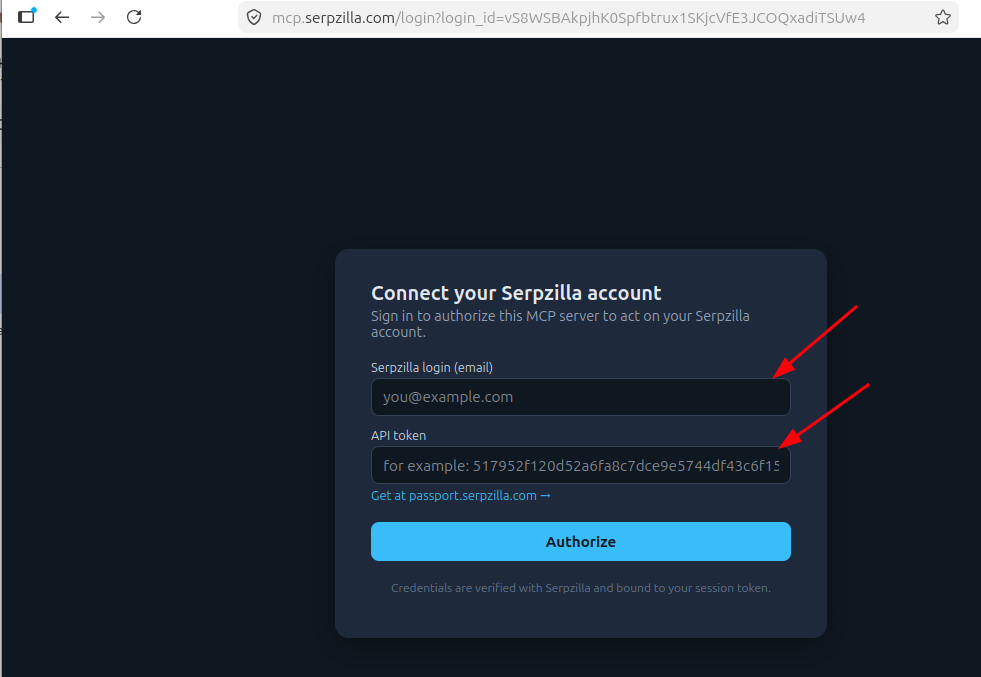
If the credentials are correct, you’ll be redirected back to Claude, where the connected Serpzilla MCP server will appear.
You can also review the available Serpzilla tools and adjust their permissions:
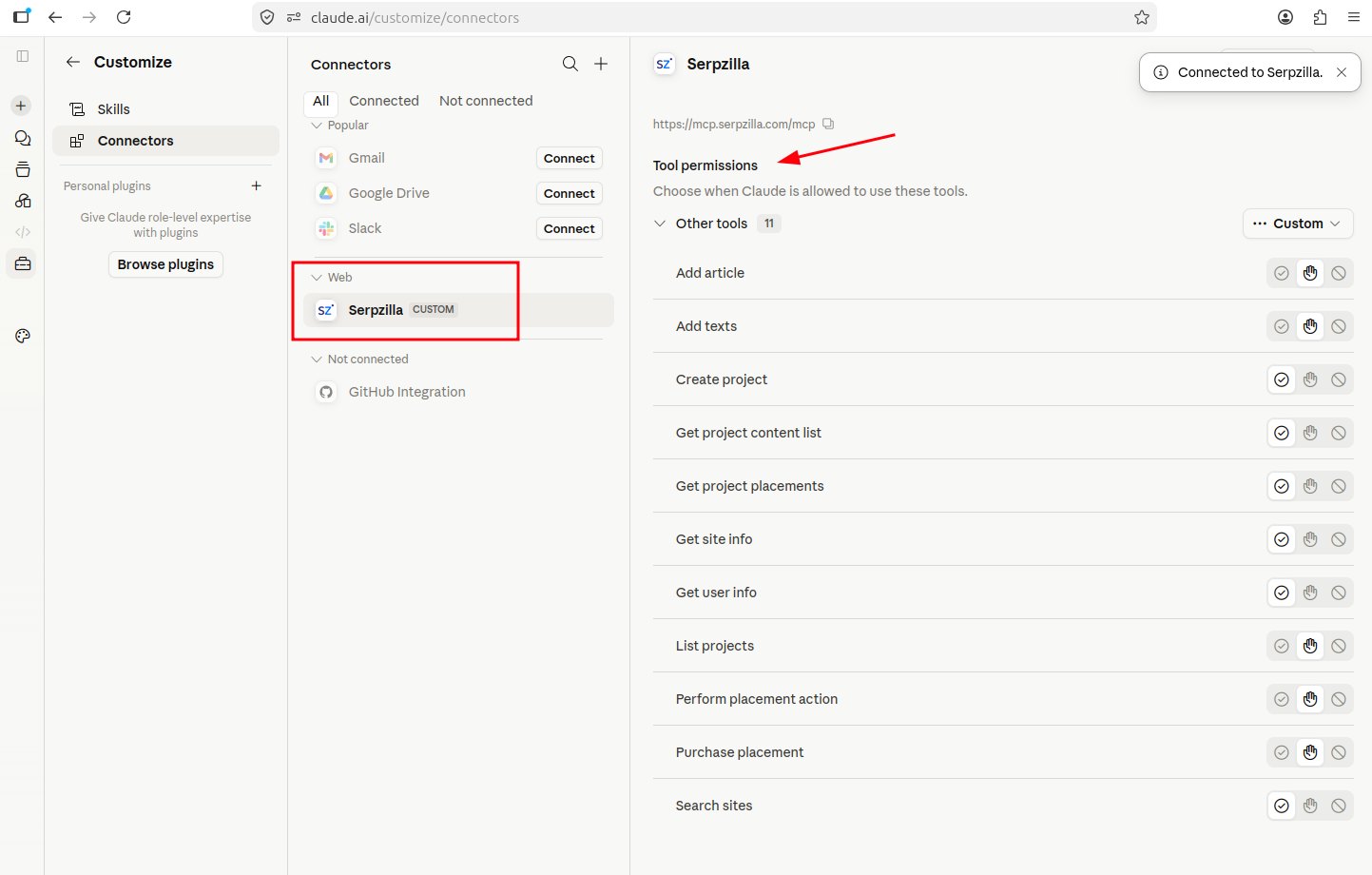
Technically, you can already use Claude to create projects, search for publisher sites, and purchase placements through Serpzilla.
The next step is to add the Skill that explains how these functions should be used within a complete Link Building workflow.
Step 3: Add the Serpzilla SEO Guest Posting Skill
The Skill gives Claude instructions on when and how to use Serpzilla’s tools.
The Serpzilla SEO Guest Posting Skill is available in a public GitHub repository:
View the Serpzilla SEO Guest Posting Skill on GitHub
You can download the skill folder and package it as a ZIP archive.
To make things easier, we’ve also published a ready-to-upload ZIP archive on the official Serpzilla website. Download it before moving to the next step.
In Claude, return to Customize, select Skills, and click the + button. Then choose Upload a skill:
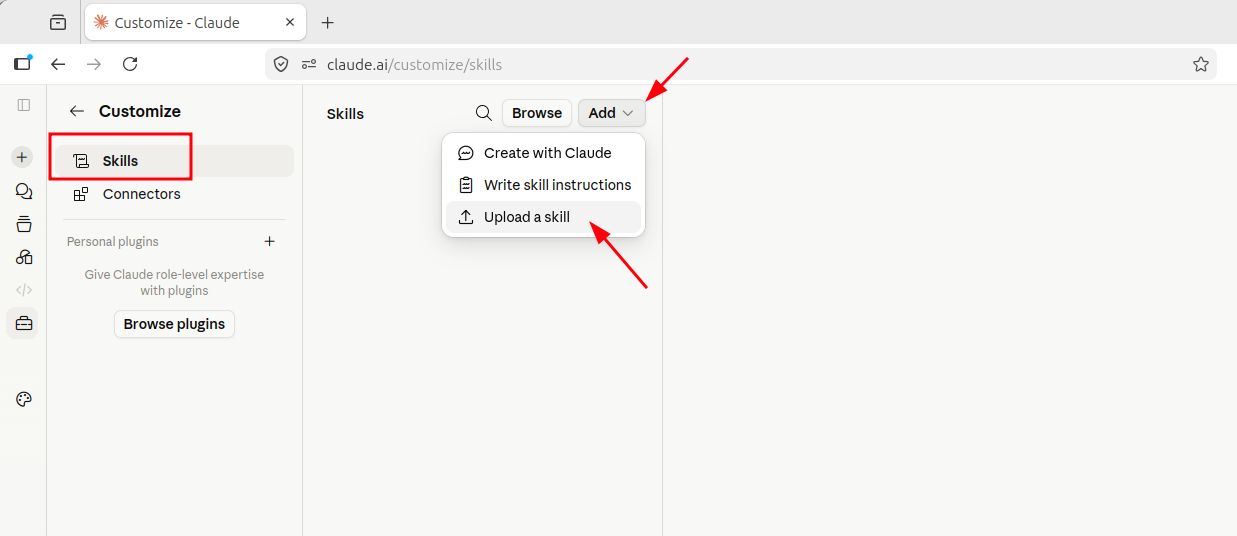
Upload the ZIP archive containing the Serpzilla Skill.
Once uploaded, the Serpzilla SEO Guest Posting Skill will appear in the list:
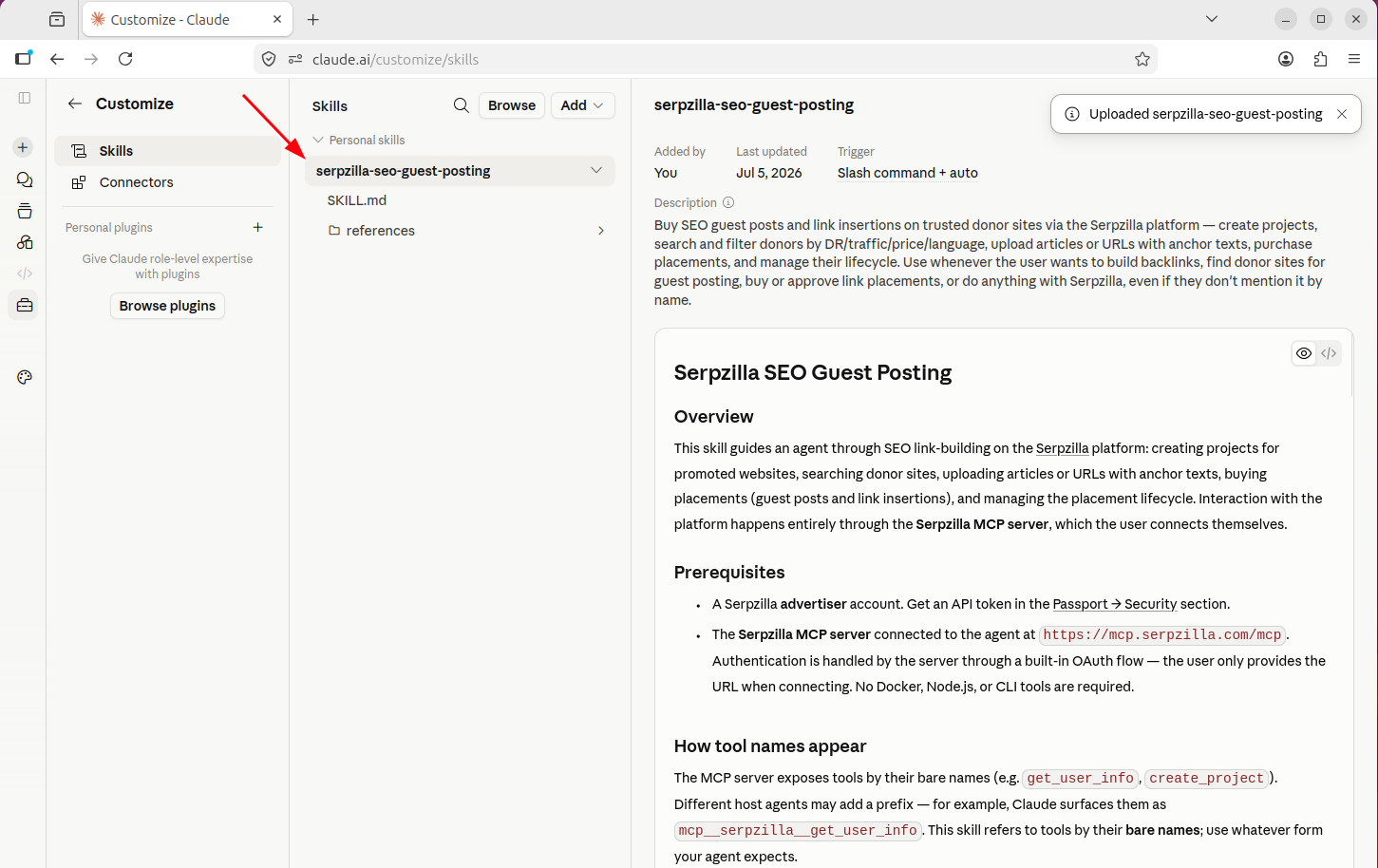
That’s it. Claude is now ready to use Serpzilla as part of your Link Building workflow.
Step 4: Create a Link Building Project in Claude
Let’s start with a prompt like this:
You’re my SEO assistant. We’ll use Serpzilla to find and purchase Guest Post placements. We’re only interested in English-language websites. Create a Serpzilla project for adidas.com.
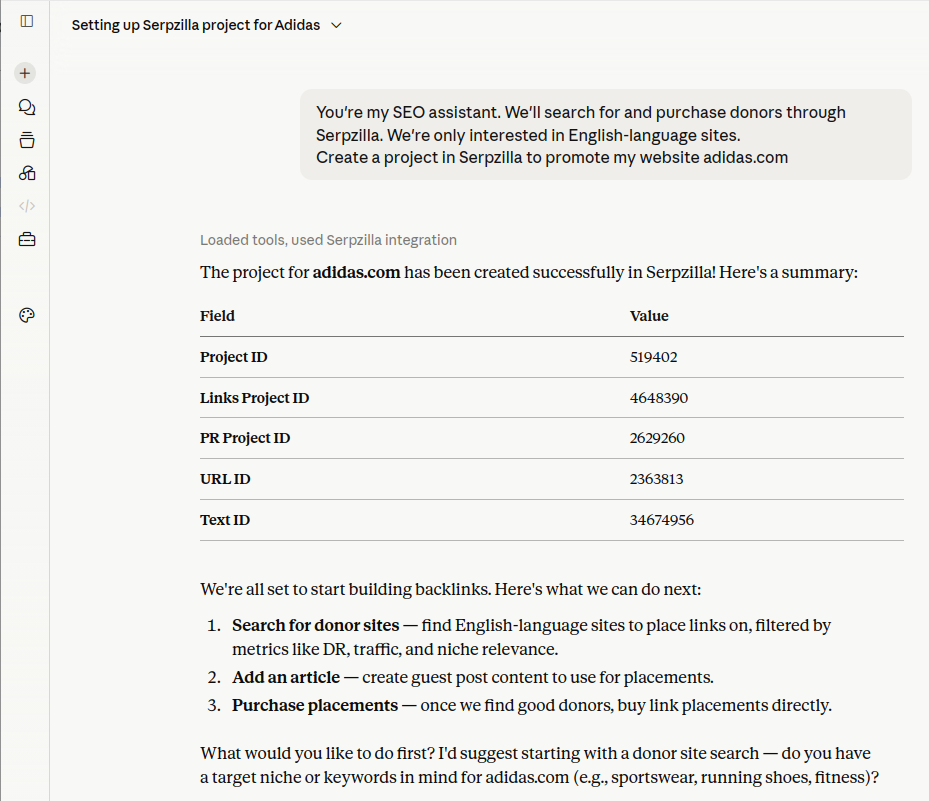
Claude identifies the appropriate MCP tool and creates the project.
Now we can start searching for relevant placements.
Find Placements Using Custom SEO Criteria
You’re not limited to manually selecting standard marketplace filters. You can describe a more complex set of requirements and ask Claude to analyze several parameters together.
For example:
Find sports-related sites with an Ahrefs DR of 20 or higher. Review the traffic history for each site and prioritize websites that have shown steady growth over the past year. Select the five best options priced under $100.
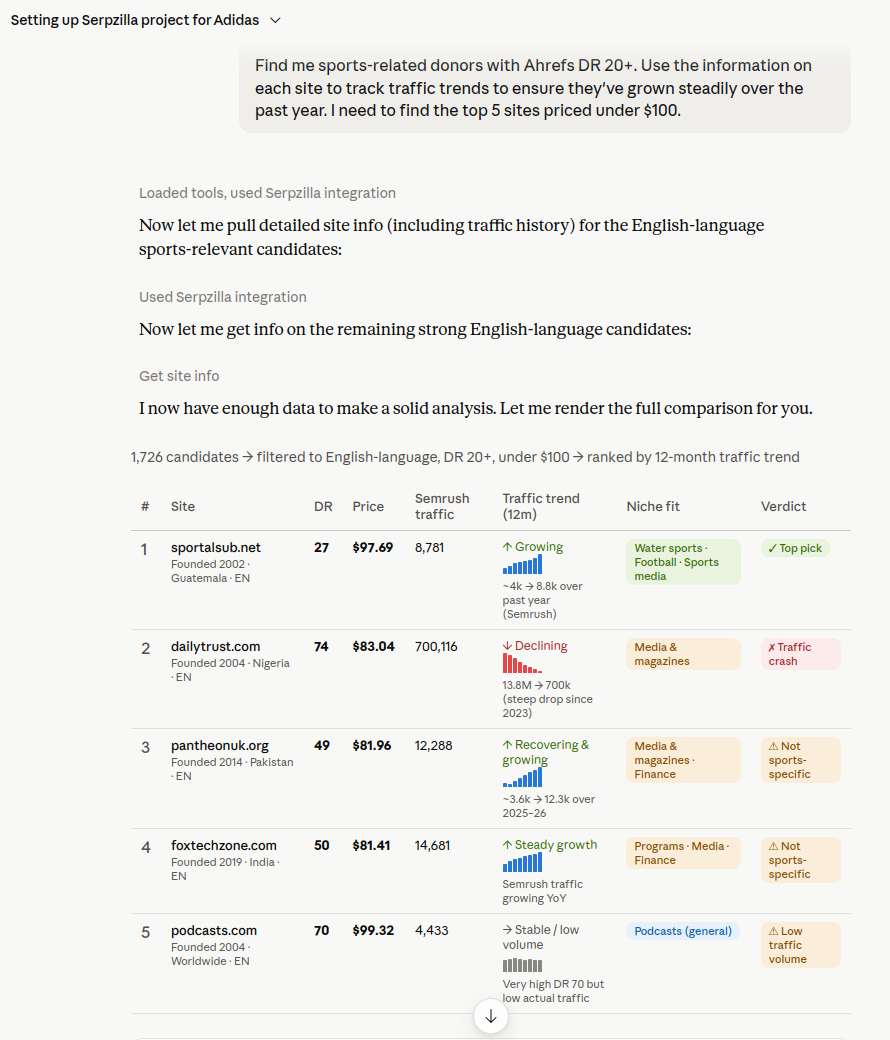
Claude searches the available Serpzilla inventory and selects websites that meet the specified requirements.
Using the data available in Serpzilla, it can analyze traffic trends and highlight sites whose organic visibility has grown consistently over the past year.
This allows you to move beyond a single authority metric and look for signs that a website is active, attracting traffic, and continuing to grow.
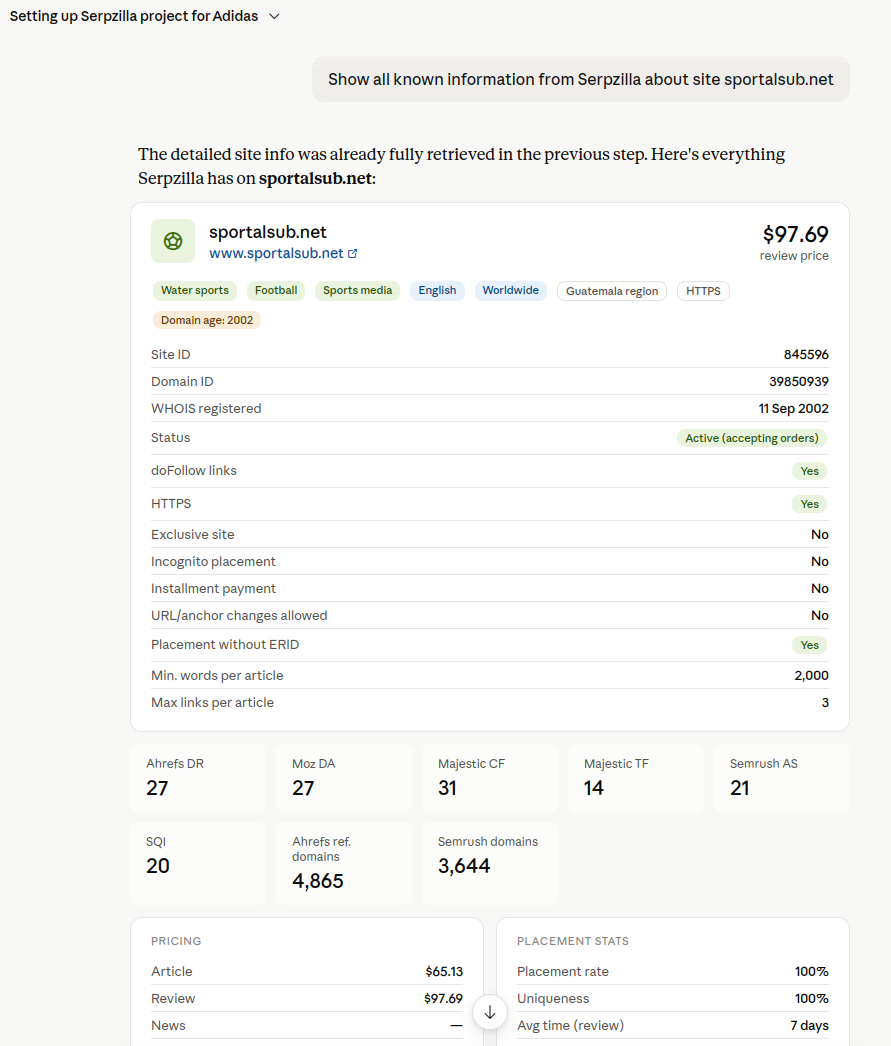
Serpzilla provides extensive information about each option, including SEO metrics, pricing, traffic history, content, and available placement formats:
Add a Target URL and Order a Placement
Once you’ve identified a suitable referring domain, Claude can add the target URL and anchor text to your project.
For example:
Find a suitable publisher site where I can order a Guest Post placement for under $20. Add this target URL to the project: https://www.adidas.com/us/back_to_school
Use the anchor text “school clothes.”
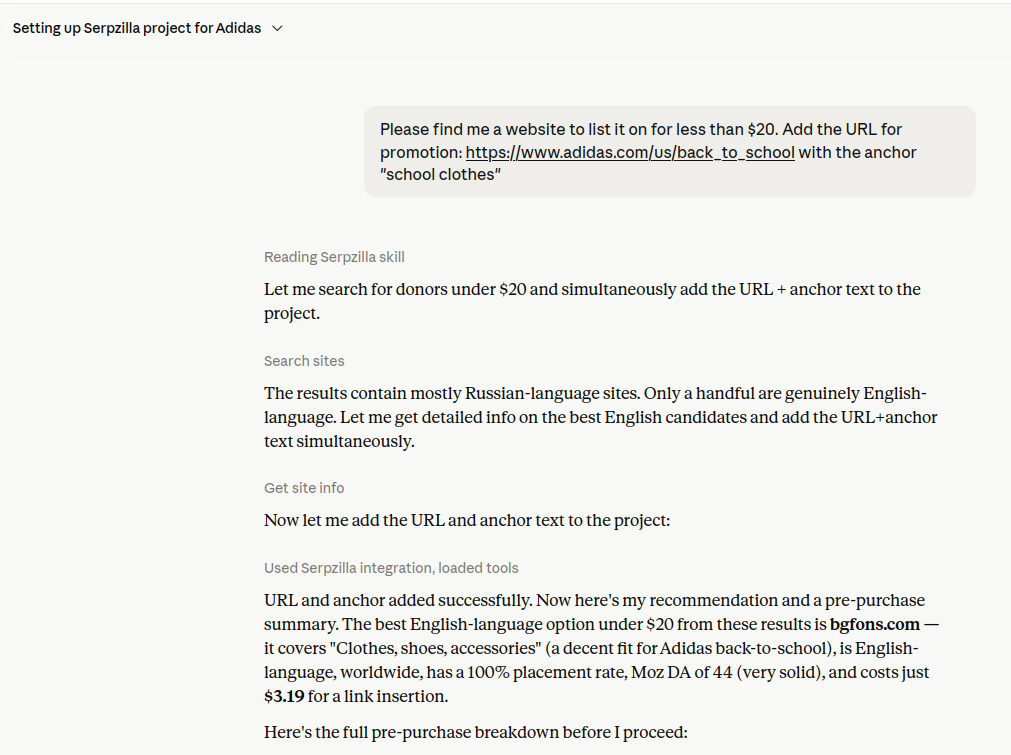
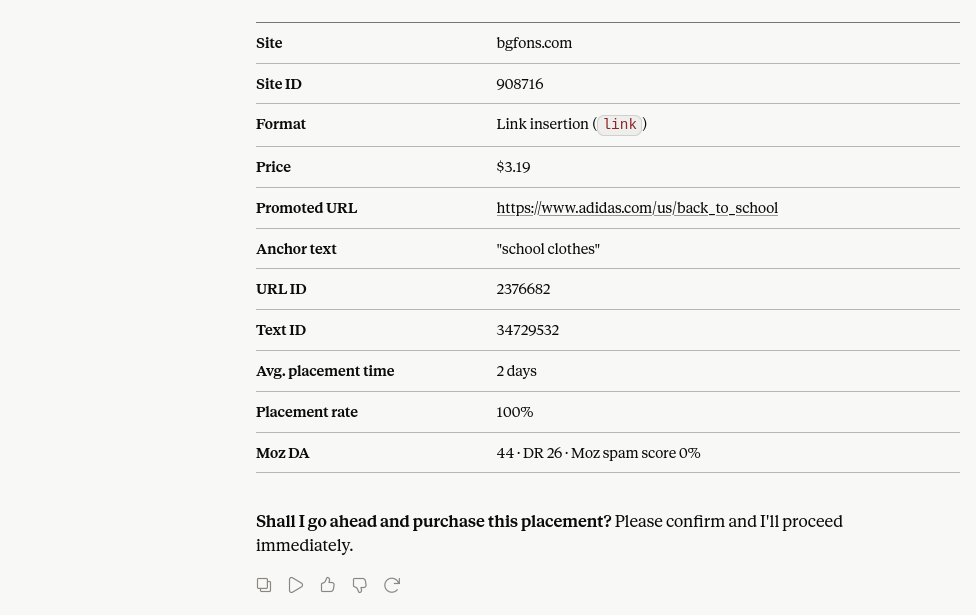
Claude adds the URL to the project and finds an available Guest Post placement within the specified budget.
Before the order is placed, Claude displays the proposed placement and asks you to confirm the purchase.
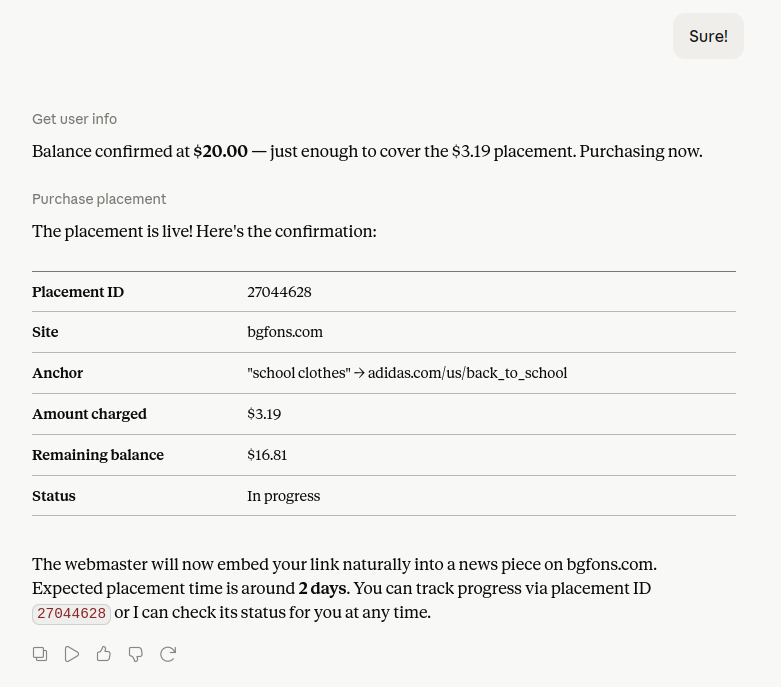
Once you confirm, Claude submits the order through Serpzilla.
The Guest Post placement is now ordered. The next step is to wait for the publisher to prepare and publish the article.
Track the Placement Through Claude
Because the Serpzilla Skill includes instructions covering the complete placement lifecycle, you can return to the chat at any time and ask for an update:
Check the current status of my Serpzilla placement and tell me whether any action is required.
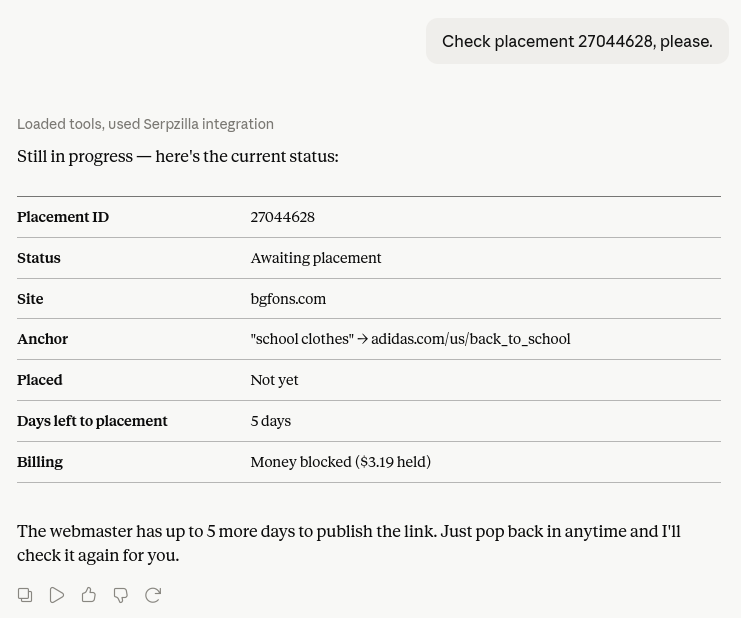
Claude retrieves the latest placement status through the MCP server and explains what is happening with the order and whether you need to take any action.